One of the good sentence I remember “When someone has teeth he/she is not having nuts and when someone has nuts he/she not having teeth”. Just joke a part. You understand what I mean to say here. If you have the resources then utilize it.
One of the most most important aspect in performance is Memory.
The main point here is if we have high configured machine which have more than 16 GB RAM but the pain point is our SQL Server is not using available Memory.
Now to configure memory for SQL SERVER is supper easy but on the same time you need to understand how much memory you can assign to SQL SERVER to use because you need some buffer memory to your operating system and other
Now just follow below steps to configure the memory for SQL SERVER
Step 1:- Right click the server and open SQL SERVER Properties
Step 2:- Now select the memory tab and you will find the below screen
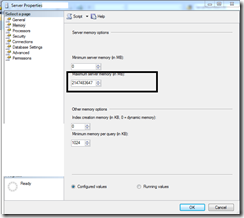
Step 3:- You can change the above boxed max memory value according to your available memory calculation.
OR you can run following command as well to set the Maximum memory that SQL SERVER can utilize
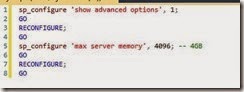
sp_configure 'show advanced options', 1;
GO
RECONFIGURE;
GO
sp_configure 'max server memory', 4096; -- 4GB
GO
RECONFIGURE;
GO
One more important point I would like to share if your machine is X86 machine in such case you have to use /3GB switch with boot file first.
You can find the instruction to set /3GB switch with following link https://technet.microsoft.com/en-us/library/bb124810%28v=exchg.65%29.aspx
I hope this article might help you.
Enjoy !!!
Rj!!


